Doing a workout
Liftspan tells you what to lift, how many sets and reps, and how heavy. Your job is to do the sets, tick them off, and tell it how they felt. Here is everything on the workout screen.
Start a session
- Open 🏠 Today. Today's session is listed under Today's lineup.
- Tap Start workout →. If you already started one, it says Continue workout →.
Want a different day? Tap one of the day chips under your streak on Today, or open 🗺️ Plan and tap ▶︎ Do this one next on any day. You can do the days of your week in any order. Starting a workout lights today's daily flame straight away.
The workout screen
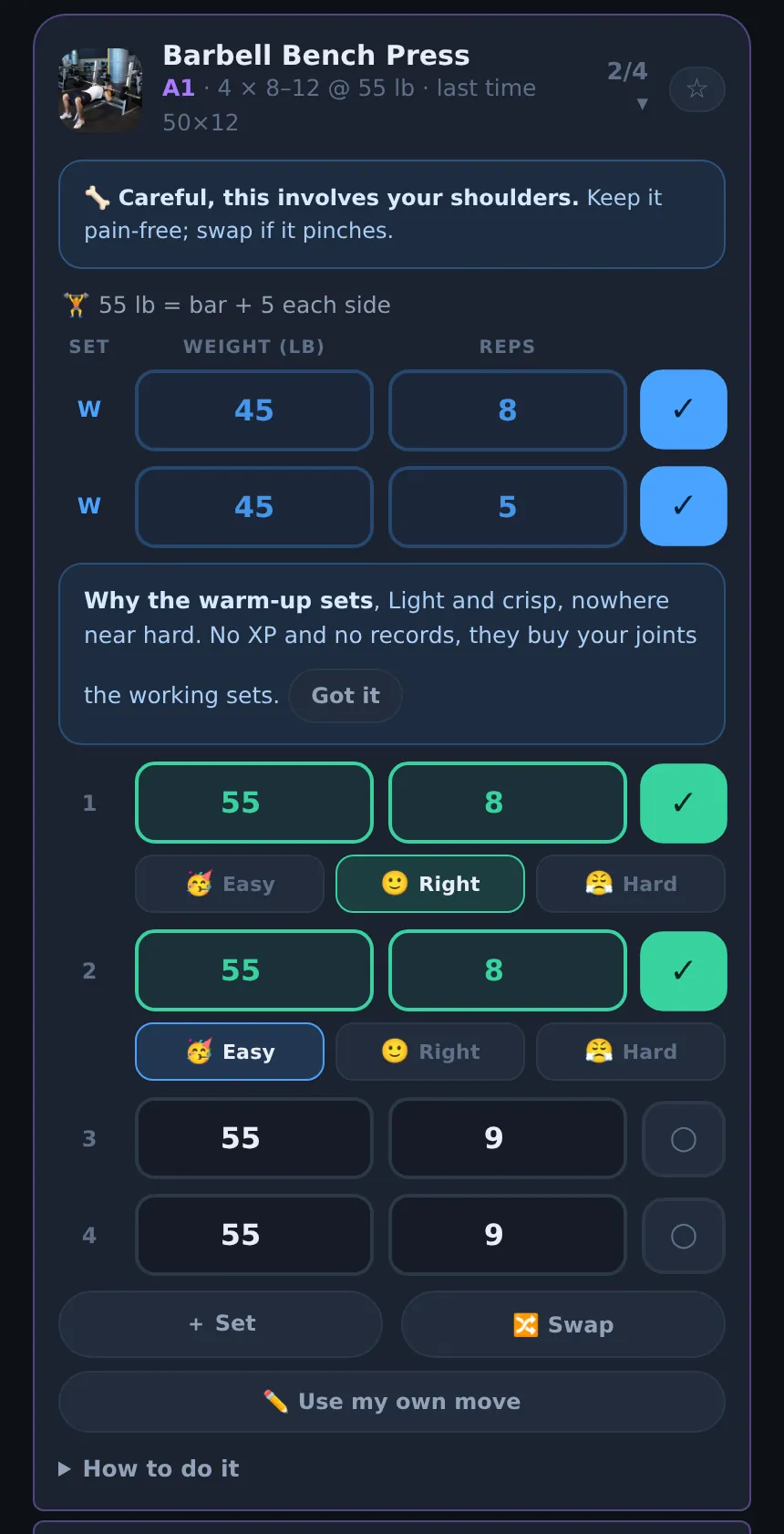
Each exercise is a card showing the target, like "3 × 8–12 @ 40 lb", and what you did last time. Barbell lifts also show how to load the bar, for example "135 lb = bar + 45 each side". Tap How to do it on any card for a demonstration and step-by-step cues.
At the top: ✕ Exit leaves the screen and keeps everything you have logged, the day name with your progress through it, and Finish.
Log your sets
- Do the set. If you used the planned weight and reps, just tap the circle ○ on that row to tick it ✓.
- If you lifted something different, type the weight or reps before you tick. What you type is copied to the sets below it. If you use a heavier or lighter weight than planned, Liftspan adjusts the rep target for the remaining sets to match the effort.
- Tap a ticked set again to untick it.
Need an extra set? Tap + Set. Weights on this screen are shown in pounds; tap the ⇄ kg / lb chip at the top for a quick converter.
Tell it how the set felt
After you tick a set, three buttons appear: 🥳 Easy (could have done 3 more), 🙂 Right (1 or 2 left in the tank) and 😤 Hard (nothing left). It is optional, but it is the best information Liftspan gets:
- Easy adds reps to your remaining sets, or moves you up to the next weight you can load.
- Hard holds the weight and aims for the bottom of your rep range, or drops a step if you fell short.
- Your ratings also decide how big next week's jump is. See how your weights go up.
You can turn the buttons off under 🏅 You → Training → Fine-tune → Effort rating after each set.
Warm-up sets
With warm-up sets on, heavier lifts get one or two lighter sets first, marked W. They do not count toward your records or XP. Turn them on or off in Fine-tune under Warm-up sets. They are on by default in joint-friendly mode.
The rest timer
The rest timer starts by itself when you tick a set, and shows along the bottom of the screen with −15s, +15s and Skip. The length comes from your goal: about a minute for Lose fat, 1 minute 45 for Build muscle and 3 minutes for Get stronger, plus 30 seconds in joint-friendly mode. It keeps the right time if you switch apps. On iPhone, Pro members can also get the timer on the Lock Screen, in the Dynamic Island and on Apple Watch; see iPhone extras.
Supersets
If supersets are on, pairs of moves that work opposite muscles (like a press and a row) are marked ⇄ A1 and A2. Do one set of each back to back with no rest between them, then rest. They save a lot of time. They are on by default for Lose fat and Build muscle and off for Get stronger. Turn them on or off with the ⇄ Supersets chip in the Today's lineup card, or in Fine-tune.
Swap an exercise PRO
Tap 🔀 Swap on an exercise card (or swap next to it on Today's lineup). Liftspan swaps in another move for the same muscle that fits your equipment and works around your joints, and carries your weight across. Not the one you wanted? Tap Swap again to see another. The swap sticks for that day of your plan in future weeks. Pro members can also tap ✏️ Use my own move to add an exercise that is not in the library.
Finish
Tap Finish at the top, or Finish workout 🎉 at the bottom. To count as a session toward your week, you need to have done at least half of the planned sets. Fewer than that is still saved to your log, but does not count as a session.
The finish screen shows your stars, any all-time bests, and how many sessions you have left this week. It then asks How did that feel?:
- 🥳 Easy, more adds a set to each move on this day next week.
- 🙂 About right keeps things as they are.
- 😮💨 Wrecked me takes a set off each move next week.
Tap Share this workout to make an image of your session to share, or Save image to keep it.
Common questions
What if I have to stop halfway?
Tap Exit. Everything you logged is kept, and Today will say Continue workout when you come back. If you are past halfway, you can also tap Finish and it still counts as a session.
Do I have to rate every set?
No. The effort buttons are optional. If you skip them, Liftspan progresses you from the weights and reps you logged.
Can I swap an exercise on the free plan?
Swapping is part of Pro. On the free plan you can still pick a different starter program, change the joints you work around, or build your plan around different muscles, and Liftspan chooses the exercises for you.