Bring your history in, take it out
Coming from Strong or Hevy? Bring your workout history with you, and let Liftspan start your plan from the weights you have actually lifted. And whenever you want, take everything back out. Both are free, and you do not need an account.
Import from Strong or Hevy
- In Strong or Hevy, export your workout data as a CSV file and save it somewhere you can reach from this device.
- In Liftspan, tap 🏅 You, then the ⚙️ gear at the top for Settings.
- Open 🗂️ Data, sync & account, then Import / Export Data.
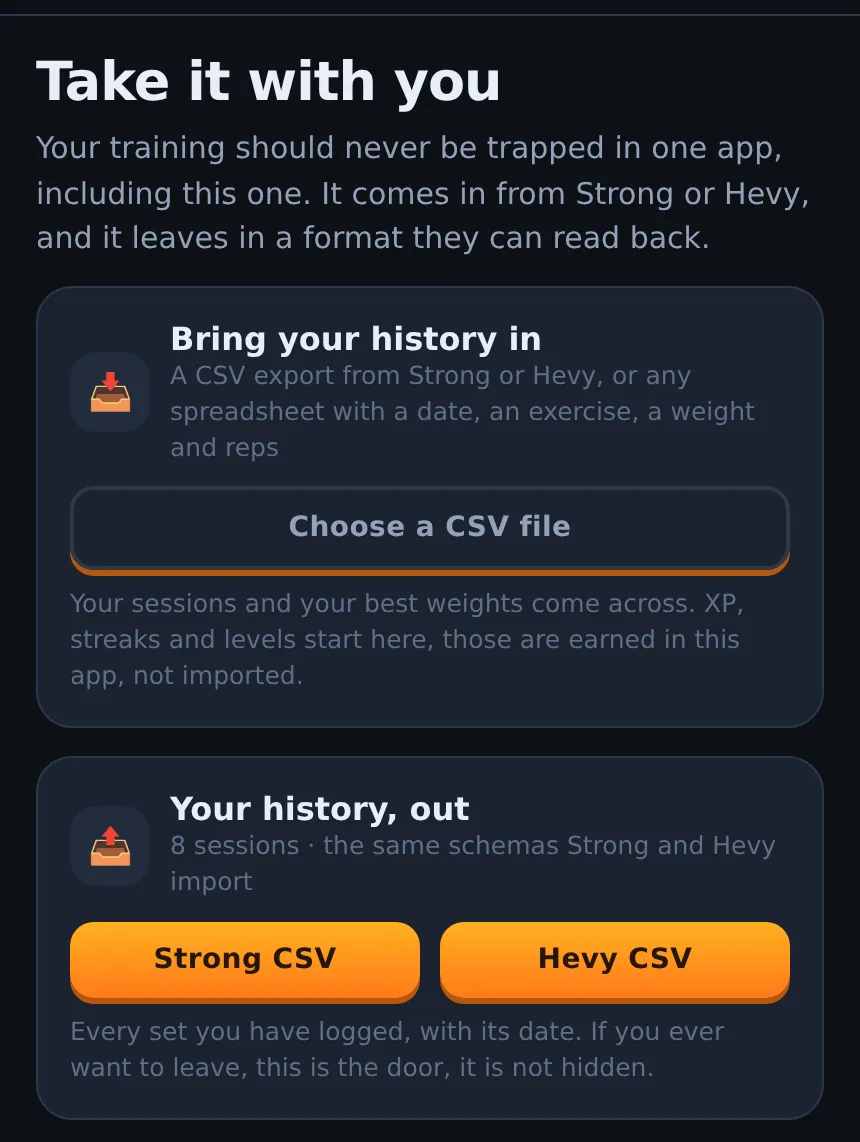
- Under Bring your history in, tap Choose a CSV file and pick your export.
- Check the summary: how many sessions and sets it found, which exercises matched Liftspan's library, and which need your eye. Then tap Import N sessions.
Other spreadsheets work too, as long as they have columns for the date, the exercise, the weight and the reps. Liftspan reads whether your weights are in pounds or kilograms from the weight column. If the file does not say, it uses your Units setting and tells you so on the summary.
What happens to imported sessions
- They appear in your log, marked 📥 Imported.
- They count toward your estimated 1RMs and your personal-best history.
- They do not give you XP, streak days or levels. Those are earned in Liftspan.
- Exercises Liftspan could not match still come across and stay in your log under the name you used. They just do not feed the progression.
Start your plan from your own numbers
After an import, tap Start my plan from these weights. For each lift in your plan, Liftspan uses the weight that matches your best logged set at your planned reps. If you never did that exact exercise, it works from your closest similar lift. It never starts you above the heaviest weight you actually lifted, and always rounds down to a weight you can load.
Export your data
- Go to Settings → 🗂️ Data, sync & account → Import / Export Data.
- Tap Open the full import and export screen.
- Under Your history, out, tap Strong CSV or Hevy CSV. Either file has every set you have logged, with dates, laid out the way that app exports its own data.
The same screen also has Full JSON, a complete backup of your profile, plan and recent training, and exports of this week's plan as a spreadsheet or plain text.
Common questions
Will importing change my current plan?
Not by itself. Imported sessions go into your log. Your plan only changes if you tap Start my plan from these weights.
Do I need to be signed in to import or export?
No. Import and export both work signed out.